One installable archive
Production JavaScript, AWS/Azure examples, templates, schemas, fonts, icons, and full documentation. No source build is needed. AWS resources use neutral icons; Azure uses bundled architecture icons.
 SwitchCase StudiosAll products
Developer tools / Local CLI
SwitchCase Infrastructure reads AWS and Azure infrastructure definitions and produces diagrams, documentation, and editable draw.io files. Keep generation on your own machine.
Node.js 22+ and npm required. Windows, macOS, or Linux. This is a command-line package, not the Windows desktop app.
Production JavaScript, AWS/Azure examples, templates, schemas, fonts, icons, and full documentation. No source build is needed. AWS resources use neutral icons; Azure uses bundled architecture icons.
SVG, editable draw.io, Markdown and JSON/XML. Add PNG, JPEG or PDF exports. Read Pulumi source/stack exports or Terraform/OpenTofu HCL and state/plan JSON.
Static parsing does not execute infrastructure. Cloud stack acquisition and preview execution are separate, explicit workflows with their own tooling and authentication.
Install a supported Node.js LTS release (22 or newer), including npm. Internet access is needed during installation for production dependencies. Native dependency support depends on your operating system and CPU.
node --version
npm --versionOpen a terminal in the folder containing the download, then run:
mkdir switchcase-infrastructure
cd switchcase-infrastructure
npm init -y
npm install ../iac-diagrams-1.0.0.tgz
node node_modules/iac-diagrams/dist/cli.js --version
On Windows PowerShell, use npm.cmd instead of npm if the script wrapper is blocked. Do not change your system execution policy.
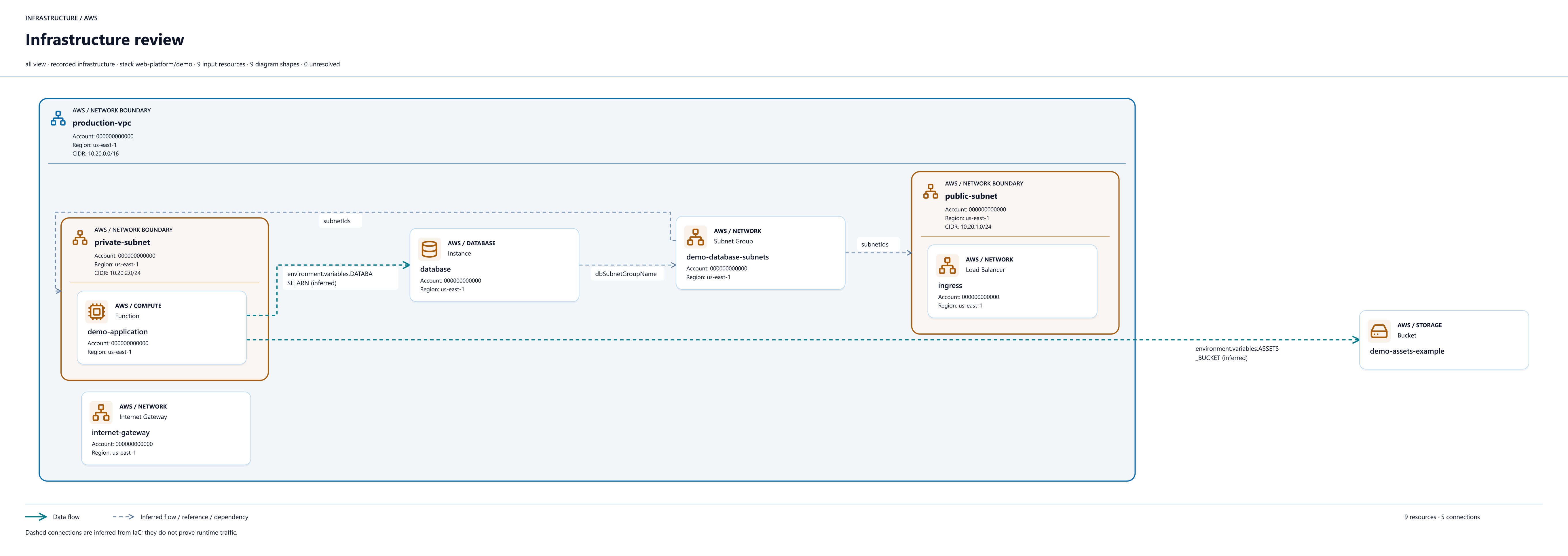
node node_modules/iac-diagrams/dist/cli.js node_modules/iac-diagrams/examples/aws-stack.json --no-config --use-template review --output-dir output/aws-demoOpen output/aws-demo/infrastructure.svg in your browser. The review template also creates PNG, PDF, draw.io, Markdown, and JSON outputs. No cloud account or Pulumi/Terraform CLI is needed for this example.
node node_modules/iac-diagrams/dist/cli.js "/path/to/your/project" --no-config --use-template network --output-dir output/my-projectQuote paths with spaces. On Windows, use a path such as "C:\projects\my-infrastructure". See --help, --list-templates and the included README and docs for configuration, filters, and export options.
Compare the archive's SHA-256 with the checksum file. Download the setup guide to keep alongside the package.
# Windows PowerShell
Get-FileHash .\iac-diagrams-1.0.0.tgz -Algorithm SHA256
# macOS
shasum -a 256 iac-diagrams-1.0.0.tgz
# Linux
sha256sum iac-diagrams-1.0.0.tgz
A checksum detects a damaged or changed download; it is not a code-signing certificate.
No. This download is the Node.js CLI. It does not contain a Windows executable, macOS app, or Linux desktop binary.
Static file analysis does not execute or deploy infrastructure. Pulumi stack acquisition requires the Pulumi CLI and backend authentication. Preview execution is opt-in: review its permissions and effects before enabling it.
Review them first. Names, resource identifiers, addresses, and flow labels can expose private infrastructure details even when secret values are omitted. Examples included in the package use fictitious IDs.
Confirm Node.js 22+ and reopen your terminal after installation. Keep npm optional dependencies enabled, check native dependency support for your OS/CPU, and choose a writable output folder. Test the bundled demo before diagnosing your own input.
The CLI uses the MIT license. Bundled fonts and icons retain their separate notices in the archive. Run npm uninstall iac-diagrams in the installation folder to remove the dependency; keep or remove generated outputs separately.